The resume template you download from a design marketplace may be the reason you are not getting interviews. Templates built for visual impact use tables, text boxes, and columns that look correct in a PDF viewer but produce scrambled output when an ATS parser processes them. Evaluating a template for ATS safety takes under 2 minutes: paste the text into Notepad and check whether all content appears in the correct order.
The resume template you download from a design marketplace might be the reason you are not getting interviews. A template that looks clean and modern in a PDF viewer can produce completely scrambled output when an ATS parser processes it, turning your carefully written experience into unreadable noise. The problem is that most template creators design for visual impact, not for text extraction. They use tables, text boxes, columns, and graphical elements that human eyes interpret correctly but ATS parsers butcher. Evaluating a template for ATS safety takes less than two minutes once you know what to look for, and it can save you months of silent rejection.
You probably already know the formatting rules: single column, standard fonts, standard section headers. The harder problem is figuring out whether a specific template actually follows them. Templates are black boxes. They arrive as DOCX or Google Docs files with hidden formatting, embedded styles, and structural decisions invisible in the rendered output. This guide is about opening that black box.
Why Most Downloaded Templates Fail ATS
Template marketplaces, including Canva, Etsy, Creative Market, and even some career coaching websites, optimize for a purchase decision. Buyers scroll through thumbnails and pick the template that looks the most polished. Visual appeal drives sales. ATS compatibility does not.
The result is a market flooded with templates that are genuinely beautiful and functionally broken for automated screening. Template creators may not know how ATS parsing works — and they may not care. Their customer reviews are based on how the resume looks, not on whether it generates interviews.
Template marketplaces optimize for purchase decisions, not ATS results. Buyers choose templates based on visual appeal, and template creators design for that purchase moment. ATS compatibility does not influence reviews or sales. The result is a market where many popular templates are visually appealing and functionally broken for automated screening.
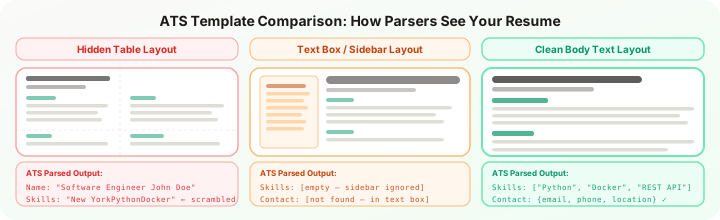
Three structural patterns cause most ATS failures in downloaded templates:
Tables for layout. Many templates use invisible Word tables to create multi-column layouts, sidebar sections, or aligned date-title pairs. The table borders are hidden, so the template looks like a clean single-column design. But ATS parsers read table cells in unpredictable order, left-to-right across rows regardless of visual layout, which scrambles the content. Your job title might merge with your phone number. Your dates might attach to the wrong employer.
Text boxes and shapes. Some templates place contact information, skills sections, or decorative headers inside Word text boxes or shape objects. These are rendered as floating elements in the document, separate from the main text flow. Many ATS parsers skip floating elements entirely. Content inside a text box may not exist in the parsed output. Your entire skills section, invisible.
Headers and footers for contact info. Placing your name and contact details in the document header is a standard design pattern that looks identical to body text on screen and in print. Most ATS parsers extract body text only. Your name and email address literally disappear from the candidate record.
The 2-Minute Template Safety Test
Before committing to any template, run this test. It catches approximately 90% of ATS-failing templates before you waste time filling them with your content.
Step 1: Open the template in Word or Google Docs. If the template is only available as a PDF, it is already a problem. You need editable source files to evaluate structure.
Step 2: Select All (Ctrl+A / Cmd+A) and check what gets highlighted. In a clean template, Select All highlights everything on the page in a single continuous flow. If you see content that is NOT highlighted, it is probably in a text box, header/footer, or floating element that ATS parsers will skip.
Step 3: Copy all text and paste into Notepad or a plain text editor. Read what comes out. Does the structure make sense? Are job titles next to their companies? Are dates next to the right entries? Are all sections present? If the pasted text is scrambled or missing content, an ATS will see the same mess.
Step 4: Check for hidden tables. In Word, go to Table > Select Table, or click inside the document and look for the table selector icon (a small cross in the top-left corner of any table). In Google Docs, click Format > Table to see if table options are available. If the layout is built with tables, even invisible ones, it is risky.
Step 5: Look at the document structure. In Word, open the Navigation Pane (View > Navigation Pane). In Google Docs, check the Document Outline. Your section headers should appear as structured headings, not just bold regular text. ATS parsers use heading styles to identify sections. A template where headers are just bold paragraph text provides weaker parsing signals.
If the template passes all five steps, it is ATS-safe. If it fails any of them, find a different template or be prepared to strip out the problematic elements.
Template Formats: DOCX vs Google Docs vs Canva vs LaTeX
The authoring tool matters because each produces different underlying file structures.
Microsoft Word (.docx) remains the gold standard for ATS compatibility. DOCX files store content as structured XML, which ATS parsers are specifically designed to read. The vast majority of ATS development and testing uses DOCX as the reference format. A clean Word template produces the most reliable parsing results.
Google Docs produces clean exports when you download as DOCX or PDF. Google’s document model is simpler than Word’s, which means fewer hidden formatting surprises. The limitation is that Google Docs templates tend to be less visually sophisticated, which is actually an advantage for ATS purposes. Fewer design elements means fewer parsing risks.
Canva is where things get dangerous. It is a graphic design tool, not a word processor, and Canva resumes are fundamentally images with text overlaid — even when exported as PDF. Some templates produce machine-readable text layers, but the extraction order depends entirely on how the designer arranged elements on the canvas. Two-column Canva templates almost universally produce scrambled output. Single-column ones sometimes work, but run the plain-text paste test before trusting any of them.
LaTeX is the opposite extreme. Standard templates (like moderncv or altacv) produce exceptionally clean PDF output because LaTeX’s text flow is deterministic — parsing order matches visual order. The catch: LaTeX requires technical skill to customize. If you are comfortable with it, these are among the most ATS-reliable templates available.
Figma, Adobe InDesign, Photoshop: These are graphic design tools. Resumes created in them are images, not documents. Do not use them for any application that involves ATS screening.
What a Good ATS Template Looks Like
Once you strip away the visual design, a reliable ATS template comes down to a few structural properties:
Single continuous text flow. All content exists in the main document body, flowing from top to bottom without tables, text boxes, columns, or floating elements. The visual layout may include visual hierarchy through font sizes, bold text, and spacing, but the underlying structure is linear.
Heading styles applied to section headers. “Experience” is formatted as Heading 2 or Heading 3 in the document style system, not as bold body text. This is invisible to the reader but tells parsers how to segment the content.
Consistent date formatting. Dates appear in a recognizable format (Month Year, MM/YYYY, or YYYY) adjacent to the job entry they belong to. Templates that place dates in a separate column or sidebar create association problems for parsers.
Standard section order. Contact info, summary, skills, experience, education, certifications. Variations in order are fine (education before experience for recent graduates, for example), but the section labels should be standard, parseable terms.
No graphical skill ratings. No progress bars, star ratings, dot scales, or circular charts for skill proficiency. These render as empty space in parsed output. Worse, they communicate nothing meaningful to human reviewers either.
No embedded images for decorative elements. Icons next to contact info (phone icon, email icon, location pin) are common in modern templates. They add visual polish but create parsing noise. Some parsers try to OCR these icons and produce garbage characters in the output.
Where to Find Actually Safe Templates
Most free template sites do not test for ATS compatibility. Some paid template services do. How each source actually performs:
Google Docs built-in templates: The resume templates accessible through Google Docs (File > New from Template > Resumes) are ATS-safe by default. They use simple formatting, no hidden tables, no text boxes. They are also visually basic, which is a trade-off many candidates are not willing to make.
Microsoft Word built-in templates: Mixed results. Some of Word’s built-in resume templates use tables for layout. Test each one with the 2-minute test above before committing.
LinkedIn Resume Builder: Produces a simple, ATS-compatible document based on your LinkedIn profile data. Limited customization, but parsing reliability is high because LinkedIn designed it for their own system.
University career centers: Many university career offices provide tested resume templates to their alumni. These tend to be conservative in design and reliable in parsing. Check your alma mater’s career services website.

Paid “ATS-optimized” templates: Some template sellers specifically market their products as ATS-tested. Treat these claims with verification, not trust. Run the 2-minute test regardless. “ATS-optimized” is an unregulated marketing claim that anyone can make.
What Makes a 2026 ATS Friendly Resume Work
The core requirements for an ATS friendly resume have not changed: single column, standard fonts, body text only. What has changed in 2026 is the strictness and sophistication of the systems enforcing these requirements. The ATS market has concentrated around a handful of dominant platforms: iCIMS, Greenhouse, Lever, Workday, and Taleo. Each has updated their parsers significantly in the past two years.
Three things matter differently now.
Keyword context, not just presence. Current ATS systems weight keywords based on where they appear in the document. Listing “Python” under a “Skills” heading scores differently than the same word buried in a summary paragraph. The 2026 ATS friendly resume is structured to place each keyword in the context that receives the highest scoring weight.
PDF handling has improved for clean exports. Most major platforms now extract text reliably from PDFs generated by Word or Google Docs. PDFs exported from design tools still fail. This improvement does not change the recommendation to use DOCX. It just means a clean PDF is an acceptable backup format, not a replacement.
Skills taxonomy matching. Several current ATS platforms map your extracted skills to internal classification systems. “Machine learning” and “ML” may map to different entries in some systems. The fix is simple: use the exact phrasing from the job posting. This is why matching your language to the job description produces measurably different results in 2026 than generic keyword lists did three years ago.
Understanding these changes is what separates a 2026 ATS friendly resume from one optimized for systems built a decade earlier.
The Two-Version Strategy
Visual appeal and ATS compatibility pull in opposite directions. A resume that parses perfectly may look underwhelming when a human reads it on screen. A beautifully designed resume may parse as garbage.
The way around this trade-off: maintain two versions.
Version A: ATS-optimized. Single column, standard template, maximum parsing reliability. This is the version you submit through online application portals, upload to ATS systems, and use for any application where you know the resume will be machine-parsed before a human sees it.
Version B: Visual-optimized. A more polished design with thoughtful typography, visual hierarchy, and possibly a subtle two-column layout. This is the version you bring to interviews, send directly to hiring managers via email, share with recruiters who request your resume, and attach to networking outreach.
Version A gets you past the machine. Version B impresses the human. They contain the same content, presented differently for different audiences.
Most candidates maintain one resume and hope it works for both contexts. It rarely does. Five minutes maintaining a second version eliminates the trade-off entirely.
Template Red Flags: A Quick Reference
When evaluating any template, these signals indicate high ATS failure risk:
| Red Flag | Why It Fails | How Common |
|---|---|---|
| Two-column layout | Parser reads across columns, scrambling content | Very common |
| Sidebar for skills/contact | Sidebar content may be in text box or table cell | Common |
| Icons next to contact info | Icons parse as garbage characters | Very common |
| Skill rating bars or dots | Graphical elements extract as nothing | Common |
| Creative section headers | ”My Journey” does not parse as “Experience” | Moderate |
| Header/footer contact info | Most parsers skip header/footer content | Common |
| Colored background sections | May use shapes or text boxes for color blocks | Moderate |
| Photo placeholder | Photos cause parsing issues in some systems | Moderate |
If a template has three or more of these red flags, replace it entirely rather than trying to fix it. The hidden formatting beneath a heavily designed template is usually too entangled to clean up without starting over.
After Choosing a Template: Validate Before Every Submission
Even with an ATS-safe template, the content you add can introduce parsing issues. Copying text from other documents can bring hidden formatting. Adding special characters, em dashes, bullet symbols, or non-ASCII characters can cause encoding problems in some parsers.
Before submitting any application, run the plain-text paste test one final time on your completed resume, not just the empty template. Verify that the content you added preserved the clean parsing that the template provided.
Test your resume against any job description in 60 seconds — ATS CV Checker is a free Chrome extension that does this automatically on every job page you visit.
Key takeaways
✓ Run the paste test — copy all resume text into Notepad before submitting; if the content is scrambled or missing, the ATS will see the same thing
✓ Select All check — anything not highlighted when you press Ctrl+A is in a text box or header and may be invisible to parsers
✓ Word over Canva — DOCX files store content as structured XML that parsers are designed to read; Canva exports are graphic files
✓ Two versions strategy — maintain an ATS-optimized version for portals and a visual version for human delivery; they contain the same content
✓ Test after filling — copying content from other documents can introduce hidden formatting that breaks a previously clean template
The Template Is the Foundation, Not the Strategy
A good template eliminates the risk that formatting will silently destroy your candidacy. It does not, by itself, get you interviews. The template is infrastructure. Your keywords, achievement bullets, and targeted content are the strategy.
But infrastructure failures are the most frustrating kind — they are invisible. A candidate with perfect qualifications and a broken template will never know that formatting killed their chances. Ten minutes verifying your template is ATS-safe is the highest-return investment in your entire job search. Do it once, do it correctly, then put your energy into the content that actually differentiates you.
Keep reading:
- ATS Resume Format Guide 2026: The 7 Rules That Matter Most
- Healthcare Resume and ATS in 2026: What Clinical Terminology Does to Your Match Score
- HR Resume and ATS in 2026: The Irony of HR Professionals Getting Filtered Out
- Marketing Resume in the AI Era: What Hiring Managers Actually Look For in 2026